Learn how to swap characters in any video using AI. Step-by-step tutorial for replacing actors with reference images using Wan AI's Reference-to-Video tool.

By Wan AI Team
15 Jan 2026
0
1.2K
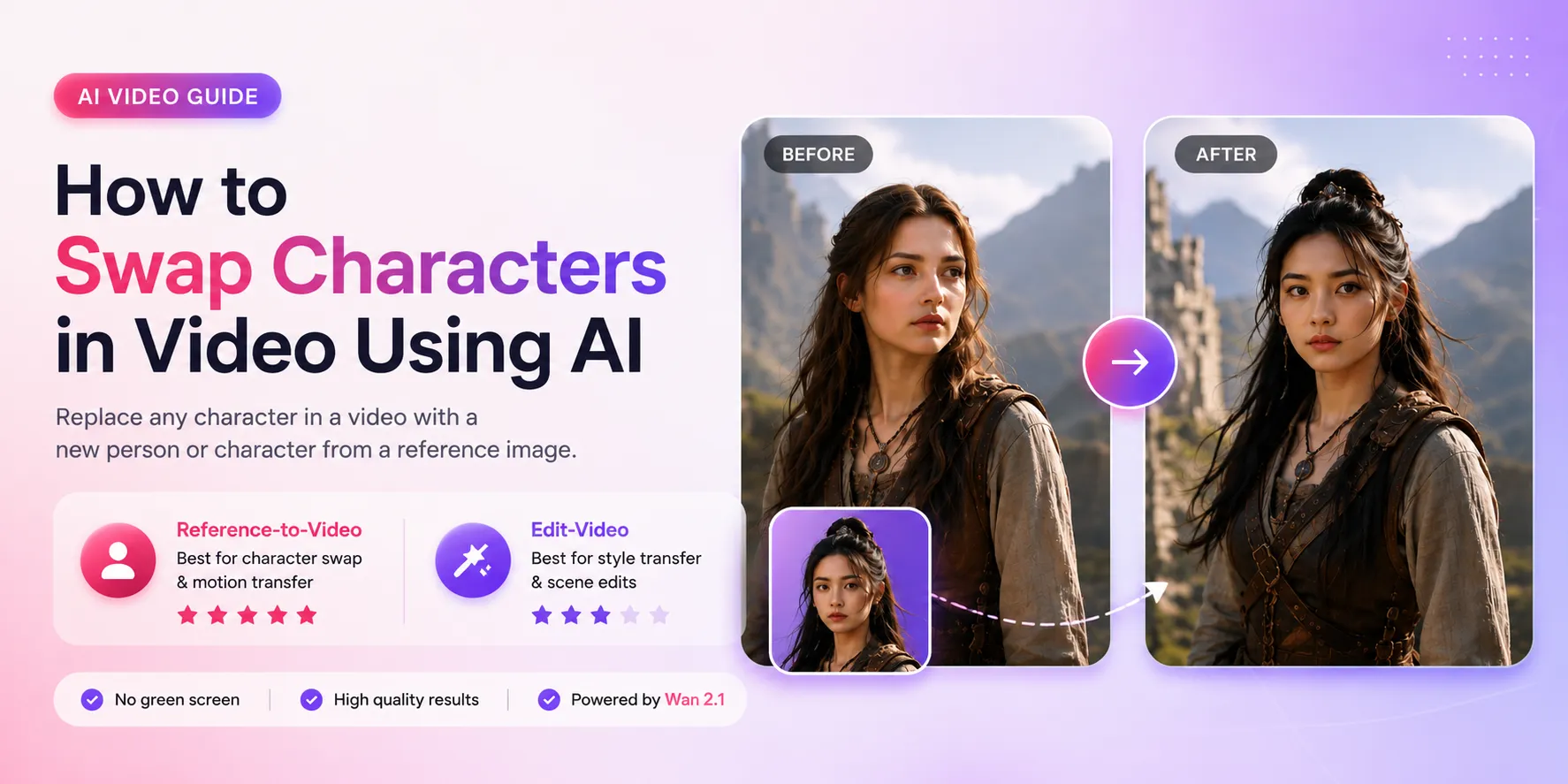
One of the most requested features in AI video creation is the ability to replace a character in an existing video with a new person or character from a reference image. Whether you're producing marketing videos, social content, short films, or personalized stories, AI-powered character swapping saves enormous time and cost — no green screen or complex compositing required.
Our platform, powered by Wan AI Model Series, offers two powerful tools for video generation and editing. In this guide, we'll show you exactly how to swap characters in video using AI, and which tool delivers the best results.
| Feature | Reference-to-Video | Edit-Video |
|---|---|---|
| Primary Purpose | Generate video from reference images & videos | Edit and transform an existing video |
| Best For | Character swap, consistent characters, motion transfer | Style transfer, scene changes, light edits |
| Input Video | Optional (used as motion reference) | Required |
| Reference Images | Multiple supported | Single supported |
| Reference Videos | Multiple supported | Not supported |
| Character Replacement Quality | ★★★★★ (Best in class) | ★★★ (Better for minor changes) |
Transform an existing video into a watercolor painting style using a simple text prompt:
"Transform the entire scene into a beautiful watercolor painting style. Soft brushstrokes, flowing paint washes, visible paper texture. Colors should bleed and blend naturally like wet watercolor on paper."
Use a reference image to swap the character while preserving the original motion:
Reference Image:
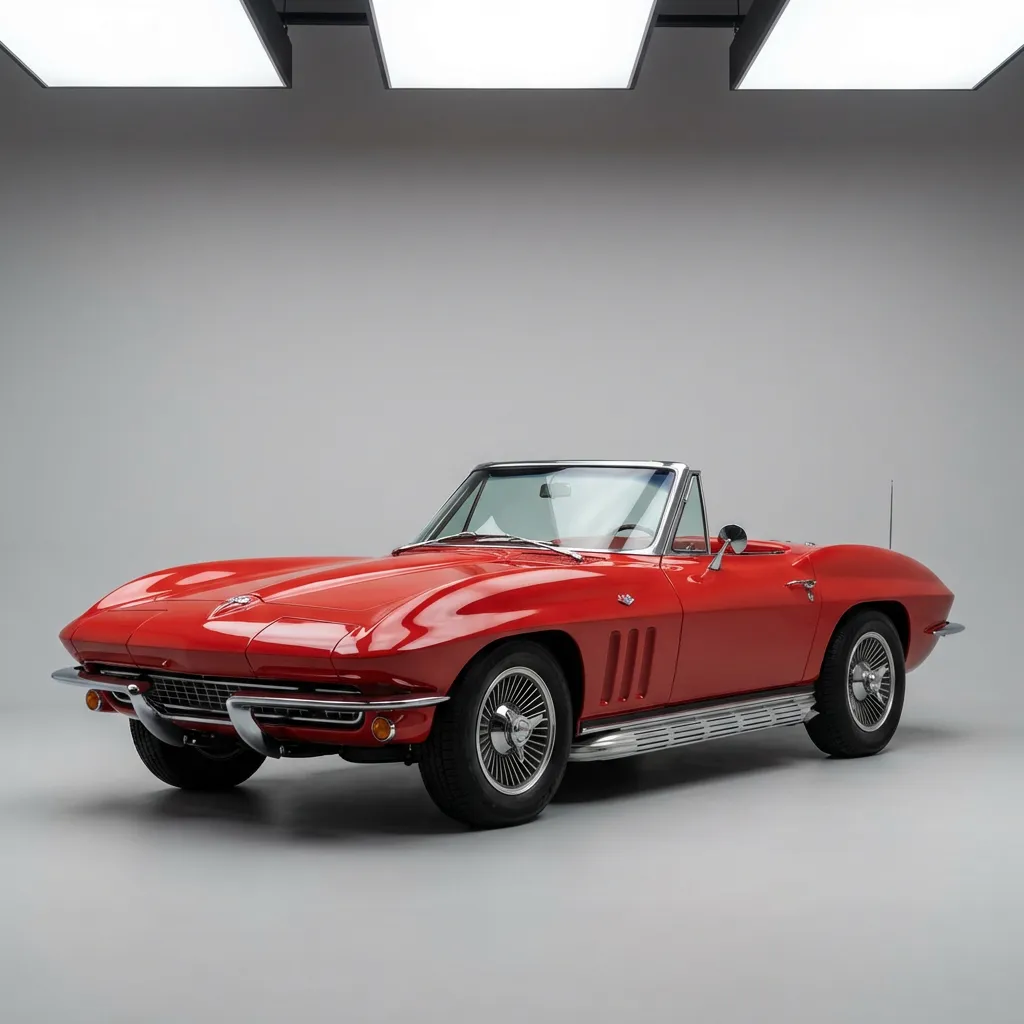
"The referenced vintage car cruises along a winding coastal highway at sunset. Waves crash on cliffs below. The car's chrome bumpers and red paint gleam in the golden light. Camera follows from a helicopter angle. Classic Americana road trip feel."
If you want to replace the actor in a video with someone from a photo, use the Reference-to-Video tool. This model excels at:
Edit-Video is excellent for general edits like changing styles or backgrounds, but it usually produces weaker results when doing full character replacement.
Log in to your dashboard and open the Reference-to-Video tool.
Upload your new character reference image (or multiple images for better consistency). High-resolution, well-lit photos with clear facial features work best.
Upload the source video containing the original character. This provides the motion and scene structure for the swap.
Write a clear, detailed prompt describing the desired output. Example:
"The woman from the reference image walks confidently down the busy city street, looking around curiously. She has the exact same face, hairstyle, and red dress as shown in the reference photo. Ultra realistic, maintain perfect identity."
Configure duration (2–10 seconds recommended), resolution, aspect ratio, and seed for your character swap video.
Click generate, review the results, and iterate as needed until you achieve the perfect character replacement.
deformed face, blurry, extra limbs, identity mismatch, low quality to avoid artifacts.Character swapping with AI has never been easier. Our platform makes professional-grade video editing accessible to creators, marketers, and storytellers — no complex software required.
Ready to try it? Head to the Reference-to-Video tool in your dashboard and create your first AI character swap today.
What character swap projects are you working on? Share your results in the comments — we'd love to feature the best examples!