Generate a still image from a written prompt. This page uses the text-to-image Qwen model and does not accept source-image uploads.
Describe the subject, composition, and lighting to create a new image.

Specify the words and their placement when requesting text in an image. Check the result carefully for spelling and layout.
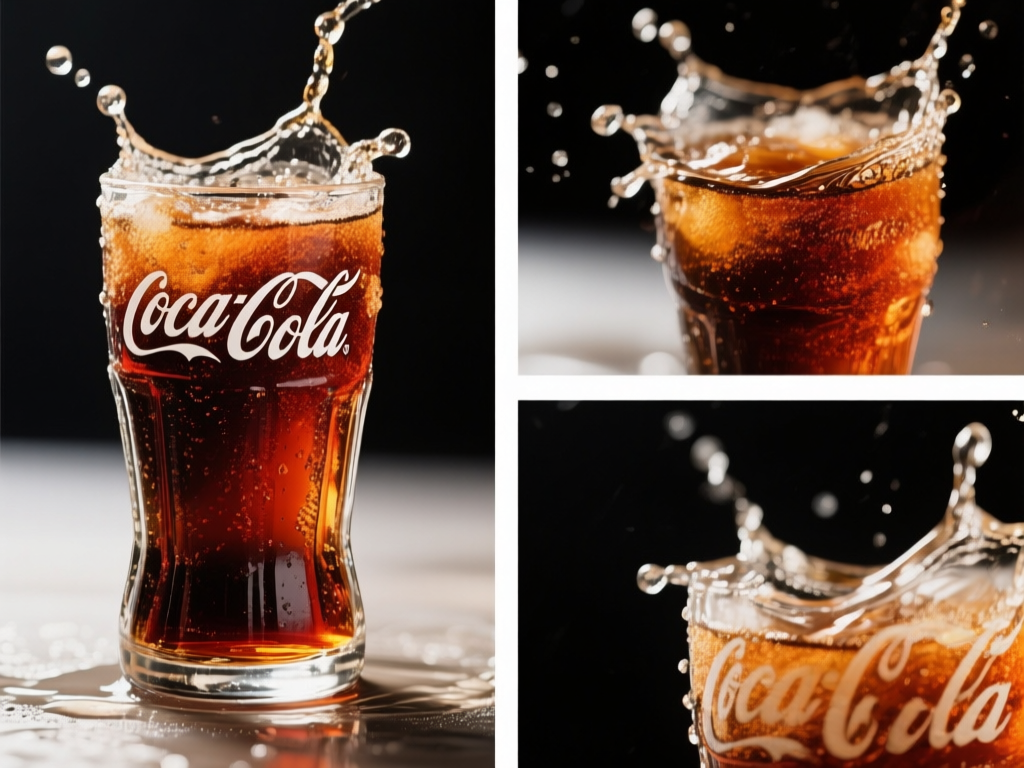
Select one of the aspect ratios shown in the workspace for your intended composition.
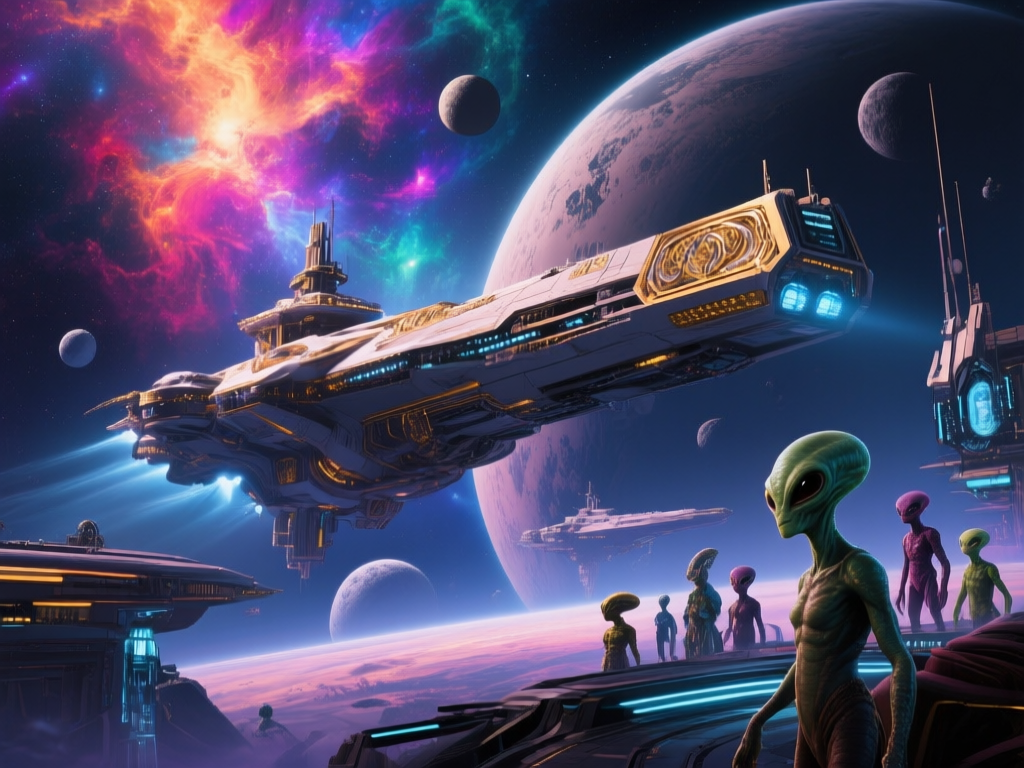
Write a prompt describing the subject, composition, lighting, and style. Choose an aspect ratio from the options offered by the selected model.
Select a workflow from the model menu. Available inputs and settings change with the selected model.
Write a prompt describing the subject, composition, lighting, and style. Choose an aspect ratio from the options offered by the selected model.
Choose from the resolution, aspect ratio, and duration options shown for your model, then check the credit estimate.
Sign in, submit the generation, and review the result in the preview or generation history. Download the result when it is ready.
Describe what should appear, what should happen, and how it should look. Start with one clear idea.
Subject + Composition + Lighting + Style
Identify the person, object, or scene that matters most.
Describe the framing and where each subject belongs.
Add the location, lighting, composition, and visual style.
Example prompts are shown in English. You can adapt them to your scene.
A ceramic teapot on a linen-covered table, centered composition, soft window light from the left, muted earth tones, realistic studio photograph.
A small bookstore on a rainy evening, warm light through the windows, hand-painted illustration, portrait composition.
Image generation uses credits. The number of images you can create depends on your available balance and the cost shown for the selected model.
Use the options shown after selecting a model. Resolution, aspect ratio, duration, and required inputs vary by workflow; a subscription does not unlock settings the model does not support.
The estimate depends on the selected model and settings. Some reference workflows also account for uploaded video duration. Review the displayed total before confirming generation.
Processing time varies with the model, task size, and service load. Follow the task status in the workspace or open generation history to check the result later.
Keep your source material, adjust the prompt or settings, and submit another generation. Each new generation has its own credit estimate.